 Home
HomeAppification
Aspherix® GUI provides the possibility to generate Apps that are based on user-defined simulation setups. Expert users can generate advanced simulation projects and pass them on with reduced complexity. Particularly for case studies where comparatively few parameters should be varied this is a helpful tool that increases the clarity and minimizes the probability for unnecessary application errors. All users have to possibility to visualize the entire simulation project with all settings at all times, but per default only the “appified” parameters are shown.
Apps and Modes
Aspherix® offers three different view modes: the Standard Mode, the App Creation Mode and the Expert mode:
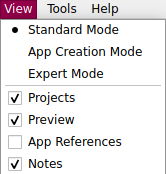
If a simulation is appified, the Standard Mode shows the App, i.e. only the appified quantites are visualized. This guarantees that the user automatically sees a simulation in the intended way when launching a GUI and loading a project.
If a simulation is not appified the Standard Mode shows the entire simulation with all selected commands and entries. Only keywords that cannot be modified (e.g., ids of certain commands) are hidden in this mode. When settings up a simulation project one typically does that in standard mode.
The App Creation Mode allows the user to “appify” commands of a simulation. To do so please right-click the command or keyword of a command that you would like to make available in the App and check the box next to “Appify command name”:
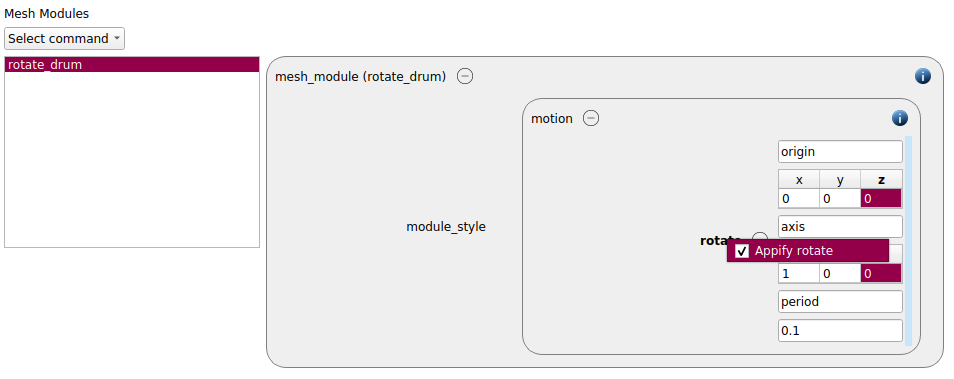
A light blue bar on the right hand side of the appified command indicates its status in all modes. Furthermore the command is added to the list of “App references”. They can be visualized by checking the “App References” box in the View menu:
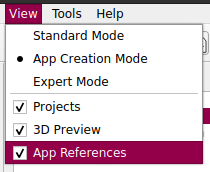
This opens the App References window:

A command can be “un-appified” either by removing it from the App references list or by right-clicking the command / keyword and removing the tick in the checkbox.
When changing from the App Creation Mode to the Standard Mode the command is now visualized as following:
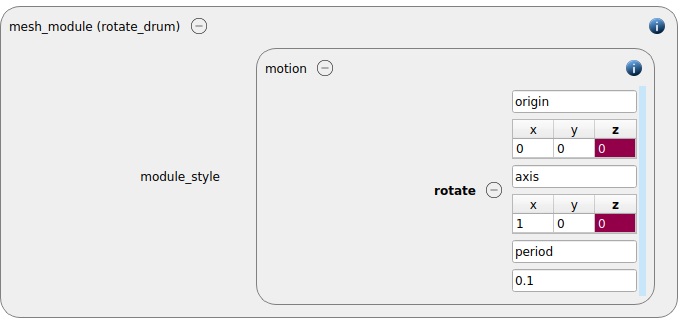
All commands that were not appified and that have no missing mandatory entries are hidden in that mode.
The Expert Mode shows all properties of each command, also ids for example that are usually not required. Particularly when adding commands in the Expert Seetings tab it is recommended to change to this mode. The Expert Mode also allows for appification.
Appifying a simulation
The base for an Aspherix® App is always a complete and runnable simulation. It is possible to appify one or more simulations inside a project.
For appifying a simulation please change to the App Creation Mode (View / App Creation Mode). When starting from an unappified simulation, this mode change has no big impact on the visualization of the case setup. The main difference is that the user can now appify commands and keywords by right-clicking them and ticking the “Appify command name” check box. A blue bar on the right hand side of a keyword group (if a keyword is appified) or a blue frame around a command (if an entire command is appified) indicate the new status of the command:
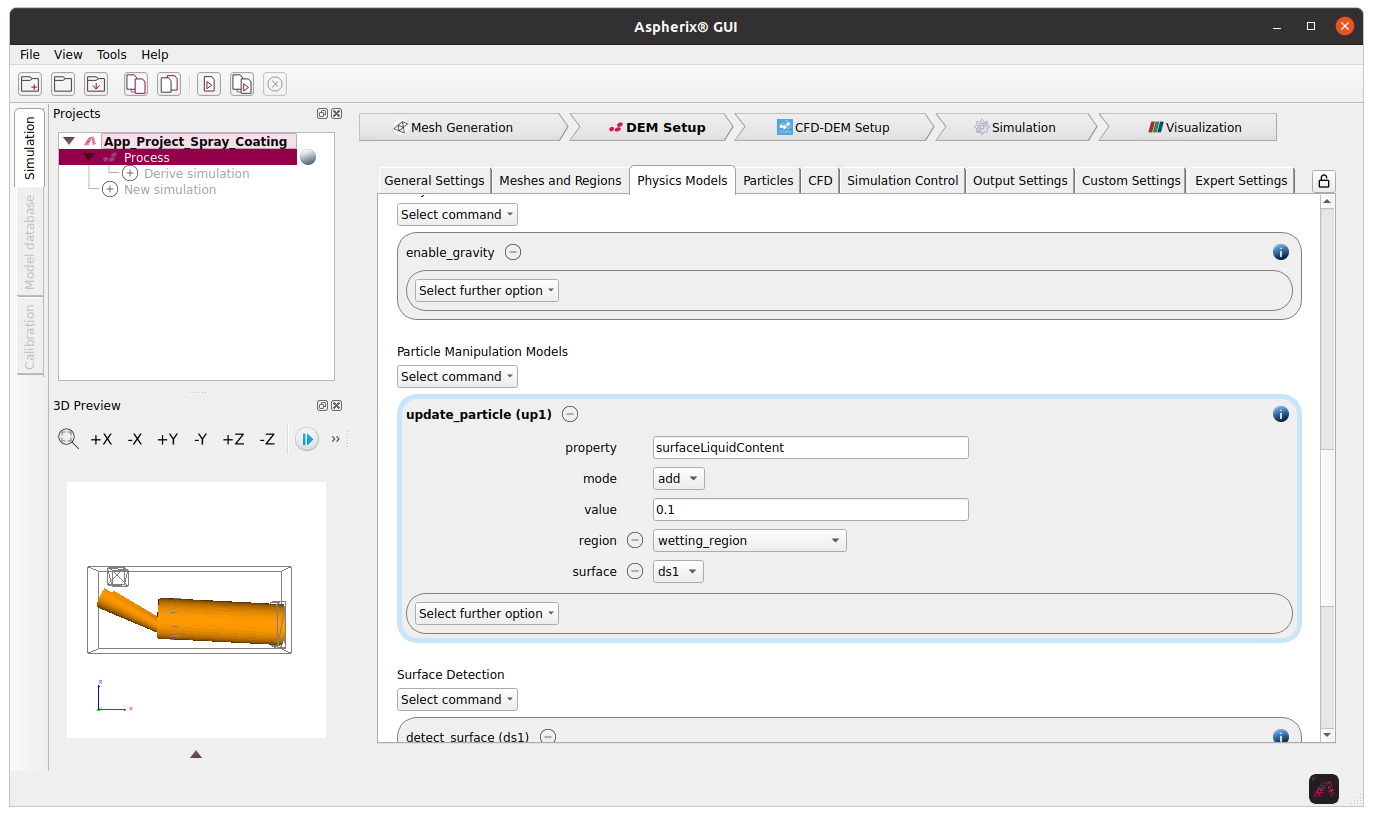
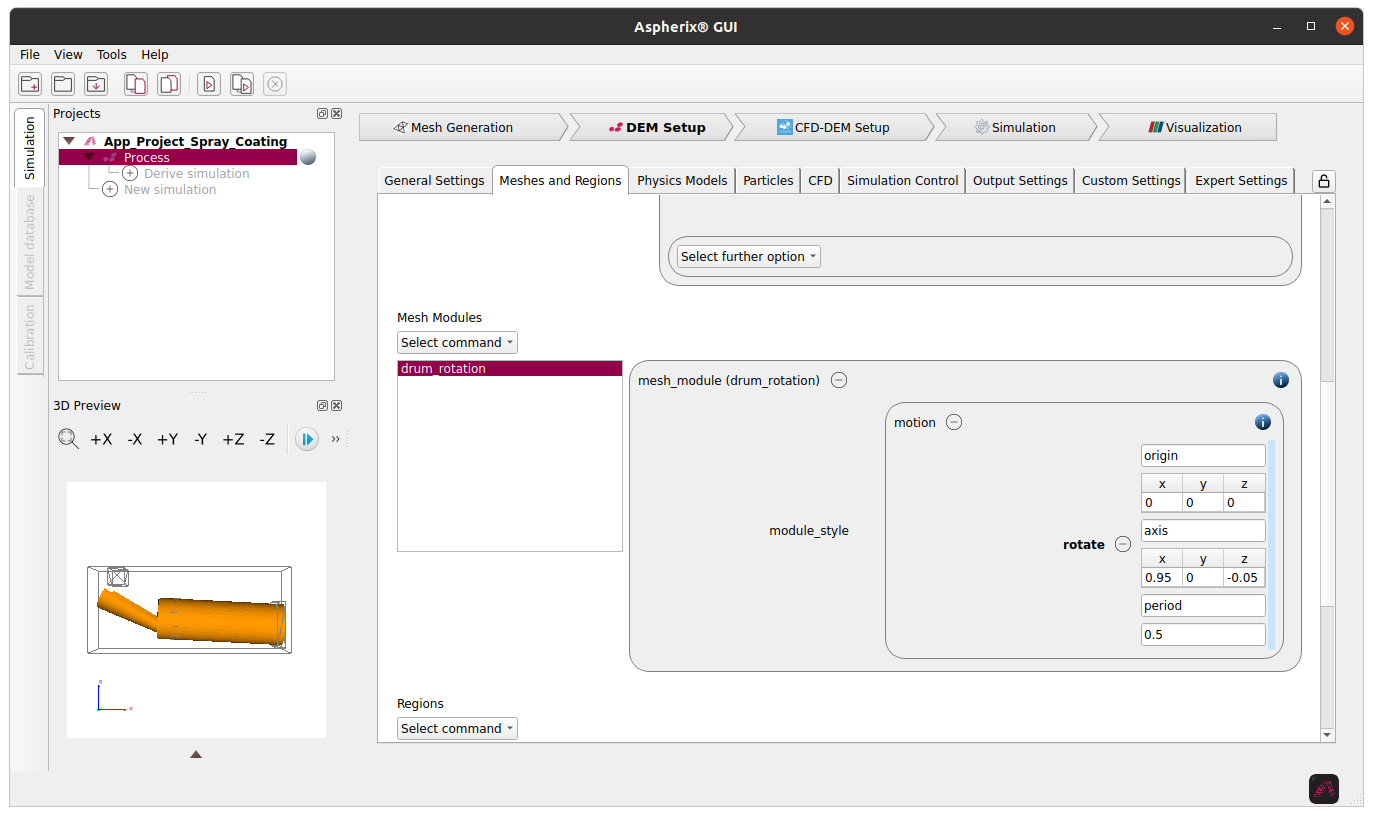
After all desired commands and keywords are appified the project is saved.
If one now changes back to the Standard Mode or if the App is opened in a newly launched the simulation is displayed as following:
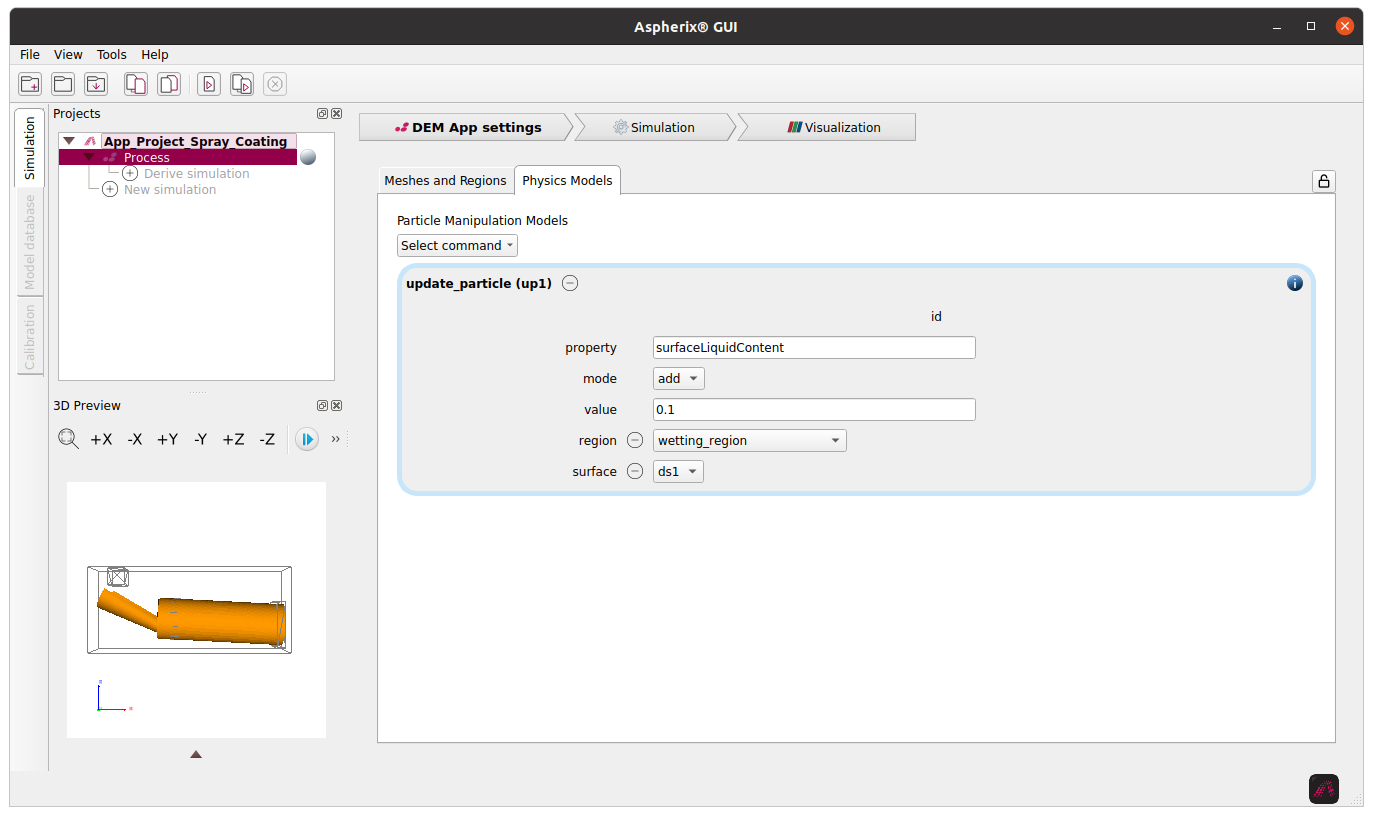
Warning
Not all settings in a simulation are suitable for appification. Particularly commands that have dependencies (e.g., particle shape, particle contact model etc.) will cause issues in an App. Please always make sure that your Apps show the intended behaviour before passing them on!
Using an App
When a user receives an appified simulation and wants to use it as such, please only open the Project while the Standard Mode (View / Standard Mode) is active. All properties that are meant to be modified are visualized. The values can be changed and after saving the project the modified simulation can be launched.
Warning
Please note that using the “Clone Simulation” functionality will clone the underlying simulation and not the App. If you wish to duplicate an App inside a project, please clone the original App, change to the App Creation Mode and appify all desired properties (list of all appified quantities can be found in App references).
Example for an App
Please have a look at this tutorial. First, a spray coating simulation is set up, then the rotational velocity of the drum and the applied liquid content are appified such that a user can vary them in a case study.