Output to a text file
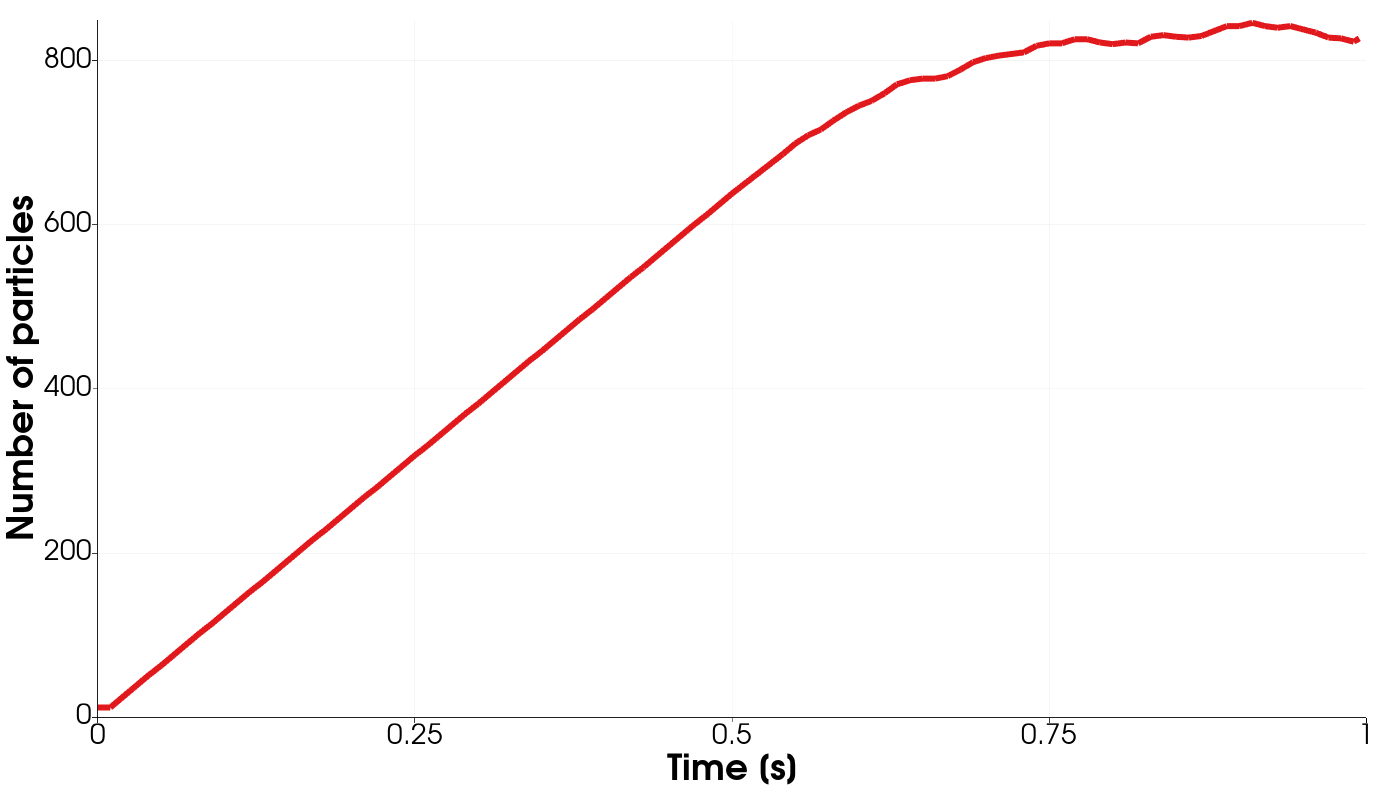
Data written to text files is mainly used for post-processing and reporting, e.g. plotting the number of particles over time.
There are several different commands that write text output to a file and we will explore them in greater detail in the following.
Status output
The output that is written to the terminal during a simulation is the so called status output. It’s frequency is determined by the write_to_terminal_timestep command and the data being written is set using the status_style command. It is important to differentiate between the output written to the terminal and the one written to the simulation_data_aspherix.csv file. While the output can be identical it is not by default. In general the csv file will contain additional data such as forces on meshes. The default data that is written to this file can be overwritten by the status_style command using the all or file keywords. Let’s consider the following example:
status_style terminal {time, atoms, ke} file {time, atoms, ke, id_wall.fx}
In this case the simulation writes the current time, the number of particles and the kinetic energy on the terminal and into the log file. The csv file will write the same properties plus the force in x direction acting on the mesh with id wall.
Single string output
The print command is normally used to write a single string to the terminal. However, using the keywords file or append the output of this command can also be written to a file. Using the keyword file would cause the file to be overwritten if it already exists. If the keyword append is chosen then the string will be appended to the file and the original content would remain. So if you want to write a string with a variable to a file you could use the following command:
print "Variable value my_variable = ${my_variable}" file my_file.txt screen no
This would write the value of the variable my_variable to the file my_file.txt and it would not be written to the terminal due to the screen no.
Repeated string output
The write_to_file command is similar to the print command discussed above, the difference is that it is written periodically determined by either the write_output_timestep command or the write_every_time keyword. Additionally, it has a title keyword which outputs a string once when the command is created, which is mostly used to write a header line. If we want to write the time and the mesh force in x direction the following command would be chosen:
variable sim_time equal time
write_to_file title "time, wall_fx" string "${sim_time} id_wall.fx" file my_output.txt
Note, as time is a status keyword we need to first assign it to a variable. In the write_to_file command we have a header which is printed at the beginning of our file my_output.txt and just reads time, wall_fx. During the simulation the command will write the value of the sim_time variable and the x-force of the wall mesh repeatedly to the file.
Commands writing output to files
Besides the commands mentioned above there are a few commands which produce their own output text files. An example for such a command is the calculate massflow command which computes the massflow through a mesh. It has a keyword file which can be used to write its output directly to a file. Alternatively, it would be also possible to extract the data in an input script and then use one of the methods mentioned above, e.g.
variable sim_time equal time
calculate massflow id mf_wall mesh wall outward_vector (0, 0, 1)
write_to_file title "time, total_mass" string "${sim_time} id_mf_wall[1]" file my_output.txt
There are several other commands that also write data to a file, you can most easily spot them if you search for a file keyword in their syntax.
Information from Aspherix®
Aspherix® writes information about the simulation not just on the terminal but in some greater detail also in a log file. This log file is called log_aspherix.txt by default. The filename can be changed using the log command or by using the -log command line option.
Additionally, if warnings occur these will be written into the warnings_aspherix.txt file. If any warnings appear during a simulation this will also be announced on the terminal and the user is strongly advised to check them in order to ensure that no settings with adverse behaviour were chosen.